
This article covers Settings → Appearance → App Branding. For font configuration see Configure Fonts; for content-type color themes see Configure Color Themes.
App Branding applies your organization's visual identity to all Netpresenter client applications — the Employee App, Screensaver client, and the Content Hub interface itself. You control the logo, its display size, and the full color scheme (header, sidebar, and interactive elements). Changes take effect immediately for all signed-in users after you save.
Prerequisites
- Account Type: System Administrator.
- No external system access is required. All changes are applied within Content Hub.
Procedure
Step 1 — Open App Branding
In the left navigation, select Settings, then expand Appearance and select App Branding.
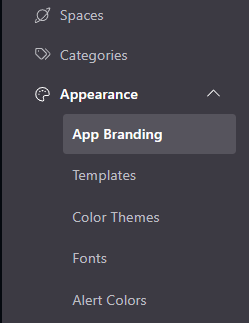
You land on the App Branding editor. The Preview panel on the right reflects your changes live as you work.
Step 2 — Upload your logo
In the Logo section, select Upload and choose the image file from your local machine.
- Supported formats: PNG and SVG are recommended for best quality at all sizes.
- If a logo already exists, selecting Upload replaces it. To remove the logo entirely, select Delete.
After uploading, choose a Logo Size:
| Option | When to use |
|---|---|
| Small | Compact header; logo stays out of the way of navigation labels. |
| Medium | Default. Balanced visibility in the header. |
| Large | Logo-first layouts; works well with shorter navigation labels. |
Step 3 — Configure the App theme colors
The App theme section controls three color groups. Each color field accepts a hex value (e.g., #381ABC) or can be set via the color-picker that opens when you select the color swatch.
Use the Preview panel on the right throughout this step — it shows a representative layout with a sidebar, content area, and interactive elements, updating in real time.
Important: Keep sufficient contrast between Background and Foreground to meet WCAG AA (≥ 4.5:1 for body text, ≥ 3:1 for large text and icons). Low contrast breaks accessibility and may violate your organization's compliance requirements.
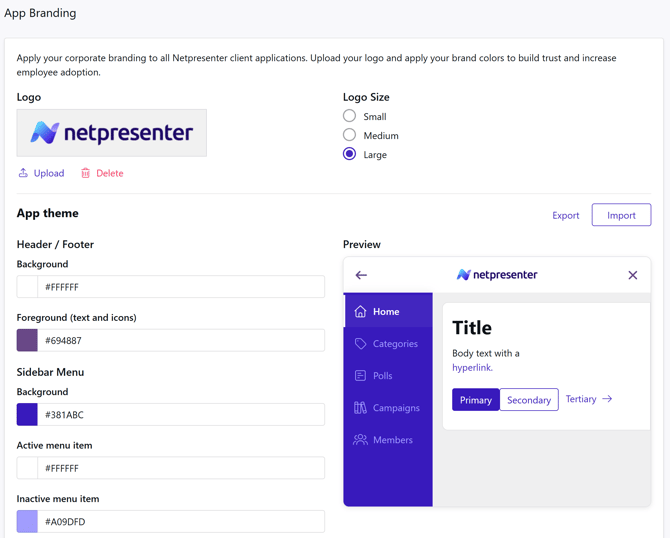
Step 4 — Export or import a theme (optional)
The Export and Import buttons at the top right of the App theme section let you transfer the full color set between tenants or keep a backup.
- Export — downloads the current theme as a file. Use this to back up before making changes, or to copy a theme to a second Space or tenant.
- Import — loads a previously exported theme file. All color fields are overwritten by the imported values; the logo is not affected.
Important: Import overwrites all theme colors immediately. If you import by mistake, use your exported backup to restore the previous values.
Step 5 — Save
Select Save changes at the bottom of the page.
Changes are applied globally to all client applications within seconds of saving. No restart or cache-clear is needed on the client side.
Verification
After saving, open the Slide Player of Employee app. Confirm that:
- The logo appears in the header at the size you chose.
- The header background and foreground colors match your settings.
- The sidebar background and menu item highlight colors are correct.
- Primary action buttons show the correct fill color.
The built-in Preview panel reflects the settings before you save and is a reliable indicator, but always do a post-save browser check in production.