
The Connections page (Settings → External Sources → Connections) is where you register and manage the OAuth credentials Content Hub uses to authenticate to external Microsoft services — SharePoint, Power BI, and Microsoft Teams. A Connection stores your Microsoft 365 tenant details and the delegated permissions granted to the Netpresenter application; External Sources then reference a Connection to pull content from those services.
You must create a Connection before you can add an External Source of the corresponding type. All External Sources of the same type in a tenant share a single Connection.
Prerequisites
- Account Type: System Administrator.
- A browser session with an account that can authorize the OAuth consent flow in your Microsoft 365 tenant.
Procedure
Step 1 — Open the Connections page
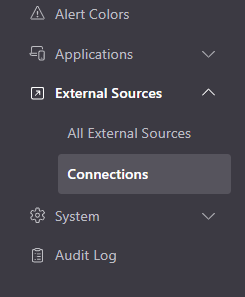
In the Settings left navigation, expand External Sources and select Connections.
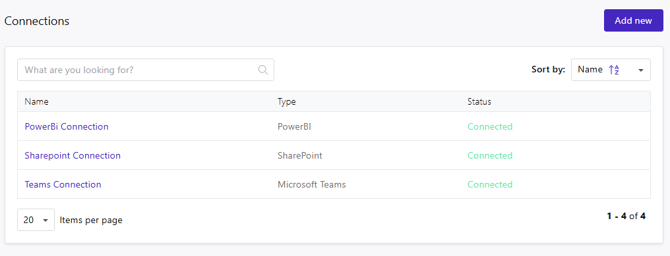
The Connections list opens. Each row shows the connection Name, Type (SharePoint, PowerBI, or Microsoft Teams), and Status (Connected or Disconnected).
Step 2 — Add a new Connection
Information for each connection type can be found in these Hyperlinks
Step 3 — Verify the connection status
After saving, the new connection appears in the Connections list with Status: Connected. If the status shows Disconnected, see the Troubleshooting section below.
Step 4 — Edit an existing Connection
Select a connection's row name (or hover the row and select the Edit icon) to open the Edit Connection view.
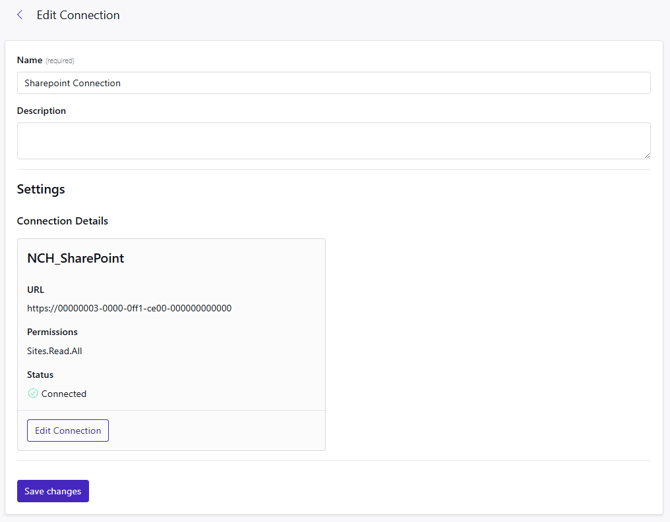
The view has two sections:
Editable fields
| Field | Description |
|---|---|
| Name | Display name for the connection. Edit at any time without re-authenticating. |
| Description | Optional free-text note. |
Connection Details (read-only)
| Field | Description |
|---|---|
| App display name | The name of the registered Entra ID application. |
| URL | The Microsoft service endpoint the connection targets. |
| Permissions | The OAuth scopes granted during authorization. |
| Status | Current authentication state: Connected or Disconnected. |
To update the name or description only, make your changes and select Save changes.
To re-authenticate (for example, after a token expires or the app registration changes), select Edit Connection. This restarts the OAuth flow. Complete the Microsoft authorization screen, then select Save changes.
Heads up: Re-authenticating a connection affects every External Source that uses it. Sources continue to run normally once the new token is active, but they will fail to retrieve content during the window when the connection is Disconnected.
Step 5 — Delete a Connection
Hover over a connection row and select the Delete icon.
Important: Deleting a Connection removes authentication for all External Sources that reference it. Those Sources will stop retrieving content immediately. Delete a Connection only after disabling or removing all External Sources that depend on it.
Verification
After adding or re-authenticating a Connection, confirm that:
- The Status column on the Connections list shows Connected.
- Navigate to Settings → External Sources → All External Sources, find a Source that uses this Connection, and confirm its Last Run timestamp advances on the next polling interval.