
Step 1 — Set up the Azure app
Please use this setup guide to configure the azure app for Entra ID Device Provisioning.
Only steps 1 and 2 need to be executed from that document.
Step 2 — Set up the Content Hub Connection
Navigate to Settings > System > Microsoft Entra ID
Click Set Up Connection
Fill in the Azure Application Details
|
Field |
Value |
|
Tenant ID |
Your Microsoft Tenant ID |
|
Tenant Name |
contoso.onmicrosoft.com or contoso |
|
Application ID |
Azure Application (Client) ID |
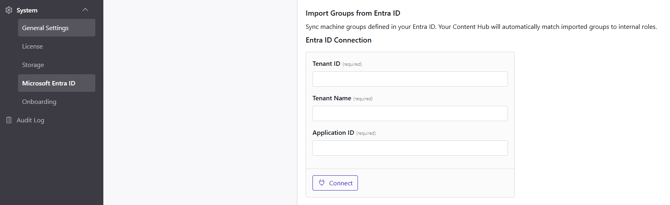
Click Connect
Step 3 — Select the groups to be synced
To synchronise Azure AD groups with the Netpresenter Content Hub, you must assign them to the Enterprise Application created earlier.
3.1 Open the Enterprise Application
-
Go to the Microsoft Azure Portal:
https://portal.azure.com -
In the search bar at the top, type:
Enterprise Applications -
Click Enterprise Applications in the search results.
-
In the list of applications, locate and open the application created in Step 1
(for example: Netpresenter Content Hub Connector).
If you do not see the application, make sure you are logged in with an account that has sufficient administrative permissions (Global Administrator or Application Administrator).
3.2 Assign Groups to the Application
-
In the left-hand menu of the Enterprise Application, select:
Users and groups -
Click the + Add user/group button at the top.
-
Under Users and groups, click None Selected.
-
Search for the Azure AD group(s) that should be synchronised with Netpresenter.
-
Select the desired group(s) and click Select.
-
Click Assign to confirm.
The selected groups are now assigned to the Enterprise Application and will be synchronised with Netpresenter Content Hub.
Note: Groups are only synced once per day at midnight. If you're setting this up during the day, you will need to wait until the next morning to see the synced groups.
✅ Setup Completed
Your Entra ID integration is now configured and ready to use!
The Provisioned groups can be found in Settings > Slides > Groups.
Devices that connect to the Content Hub, that are part of any of these groups, will be added to them automatically.